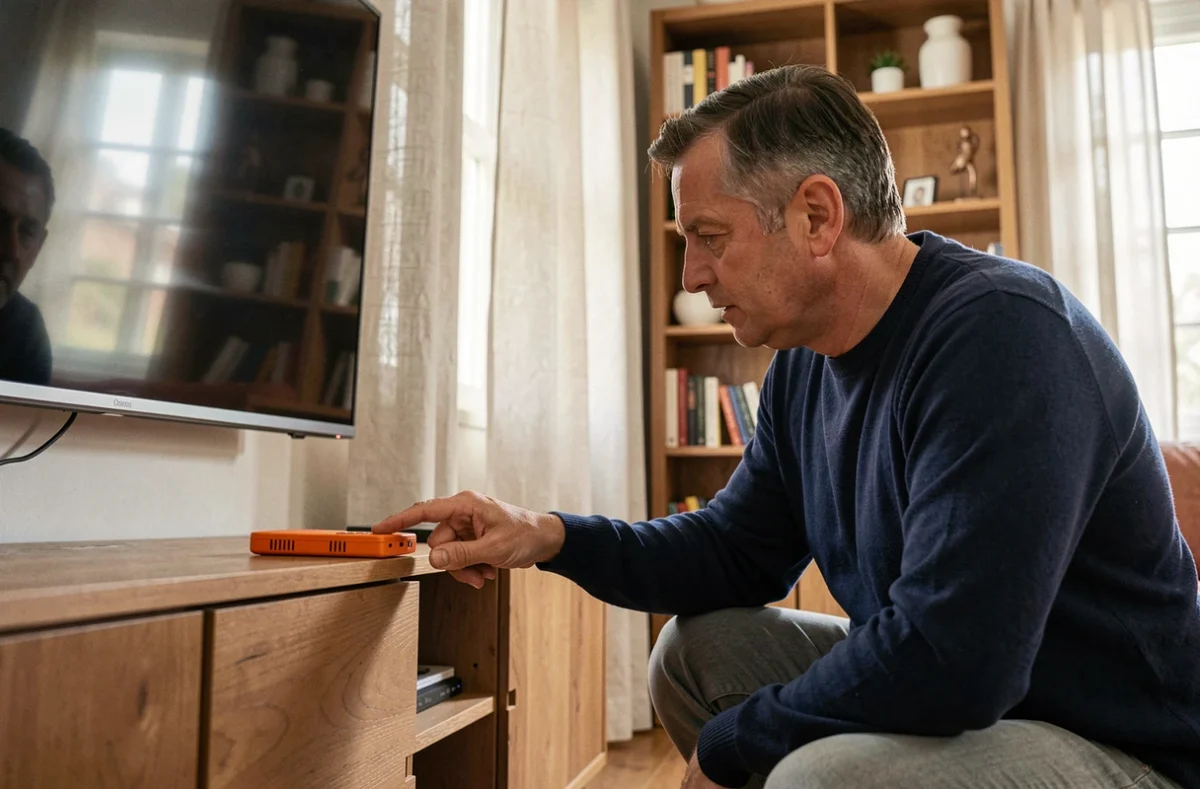
An Orange TV decoder that freezes on a black screen or displays a mosaic of pixels does not always require a reset. Before accessing the menu or holding down a button, network diagnostics and checking the physical connection between the Livebox and the decoder eliminate most false positives. Resetting without isolating the cause is like reformatting a disk for a poorly connected cable.
Network diagnostics and Ethernet connection before any reset of the Orange decoder
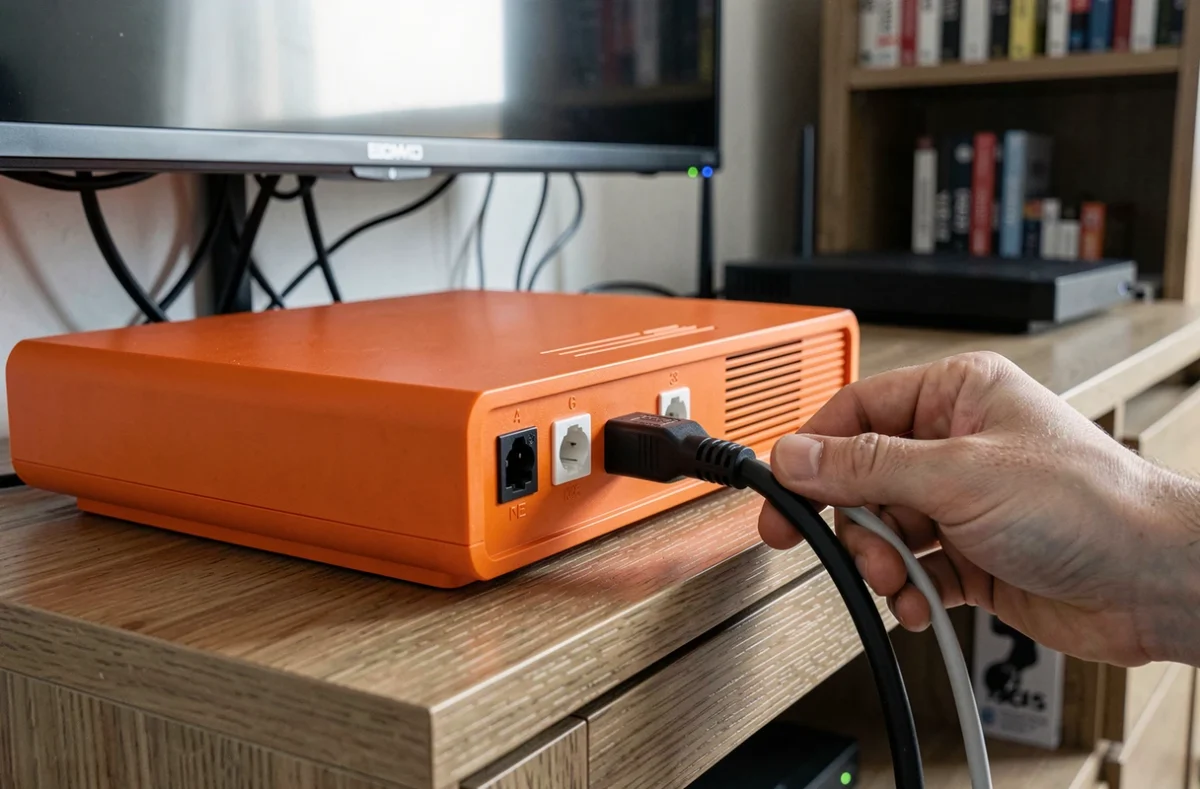
The first check focuses on the link between the decoder and the Livebox. Orange recommends a direct Ethernet connection when the two devices are close, rather than relying on Wi-Fi. A decoder connected via Wi-Fi on a saturated band or too far from the router generates exactly the same symptoms as corrupted firmware: black screen, frozen image, pixelation.
The Orange and Me app or MySosh, as well as the web tool My Local Network, allow you to view connected devices and run a local network diagnostic. If the decoder does not appear in the list of devices, the problem is physical (cable, Ethernet port, faulty powerline adapter), not software-related.
We recommend proceeding by elimination in this order before considering a reset:
- Check that the Ethernet cable is securely clipped at both ends and test another port on the Livebox.
- Disconnect any intermediate powerline adapter and temporarily connect the decoder directly to isolate a powerline fault.
- Check in the Orange and Me app that the Livebox correctly detects the decoder as an active device.
- Power cycle the Livebox and then the decoder (in that order), waiting for full synchronization before turning the decoder back on.
A detailed guide covering the complete reset procedure for the Orange decoder on Geek Network describes each step for the different models if the network diagnostics do not resolve anything.
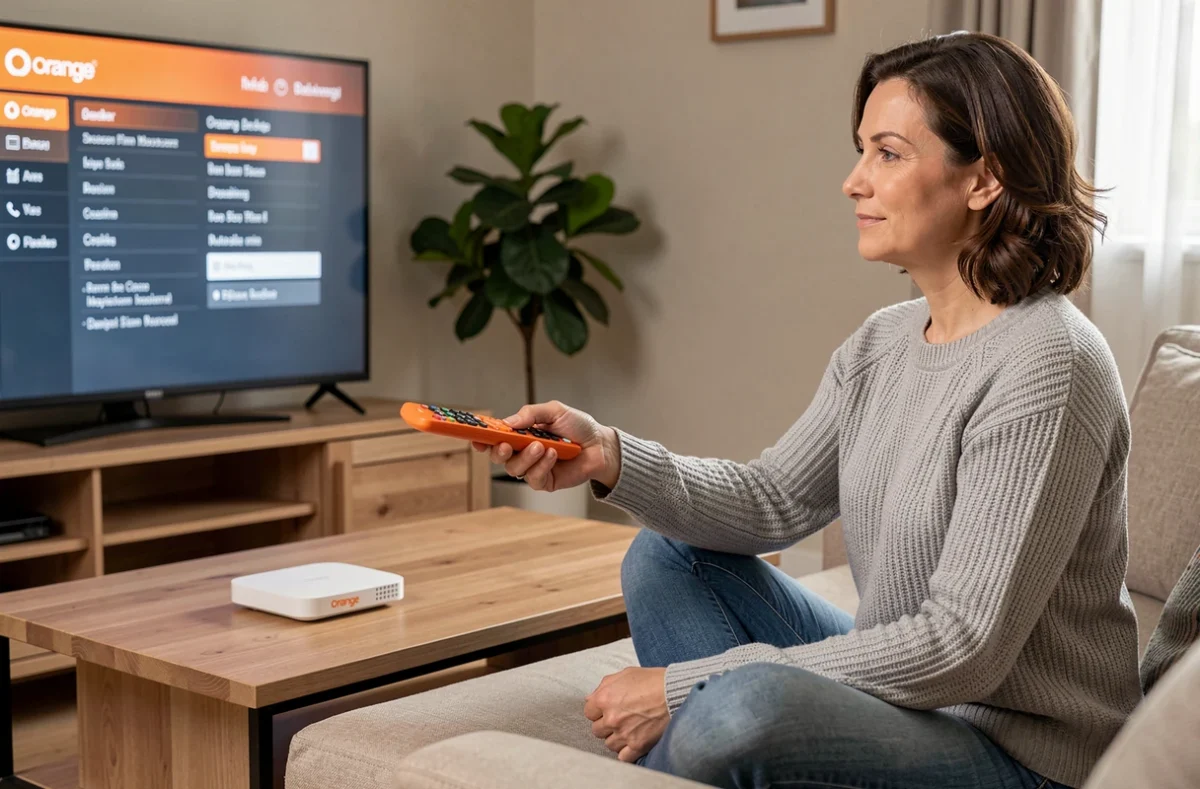
Partial or complete reset: what each option erases on the UHD TV decoder
On UHD decoders delivered with Livebox 5, 6, and 7, the menu offers two levels of reset. The distinction is not cosmetic: it determines what you keep and what you lose.
Partial reset via the Troubleshooting menu
The partial reset keeps your recordings and streaming credentials. It resets display settings, channel sorting, and audio settings, but does not affect data stored on the internal hard drive or associated Netflix or Disney+ accounts.
The procedure involves pressing the Menu button on the remote, then the gear icon at the top right of the home screen, followed by Settings and then Troubleshooting. Several indication screens follow before the actual launch. The decoder restarts, and a new TNT channel search starts automatically.
Complete reset: return to factory settings
The complete reset erases all data, including TV recordings, favorite channels, third-party app credentials, and the parental control code. The decoder returns to first installation mode, as it was when it came out of the box.
This level is only justified in two cases: a persistent malfunction after a partial reset, or preparing the decoder for exchange in an Orange store. In the menu, the option is found under Settings, then Reset, requiring entry of the adult confidential code to validate.
Reset an Orange decoder without a remote or access to the menu
A malfunctioning remote or a completely black screen prevents access to the software menu. The physical manipulation differs depending on the generation of the decoder.
On older models (TV decoder 4, Livebox Play), the button P- located on the front of the box triggers a hardware reset when held down for about ten seconds during power-up. The light blinks to confirm the switch to reset mode.
With a white remote (older generation), the blue-yellow-blue sequence at startup of the decoder also forces a factory reset. This combination does not exist on the black remotes of recent UHD decoders.
Consequences on the TV recorder and post-reset process
The complete reset deletes recordings stored locally on the hard drive of the UHD decoder. This point often goes unnoticed when initiating the procedure in the urgency of a persistent bug.
Orange plans a dematerialized recorder with content retention for 36 months. Starting October 20, 2026, recordings will be accessible from the decoder, a Smart TV, a computer, a mobile device, a tablet, or a TV stick. This change alters the situation: after a reset or decoder replacement, cloud recordings will remain available, unlike the current local storage.
After a complete reset, the decoder initiates an initial configuration phase. The setup screens follow: network connection, firmware update, channel search, parental code entry. Allow a variable delay depending on the quality of the network connection for the firmware download.
- Reconnect your streaming accounts (Netflix, Disney+, Prime Video) manually from the decoder’s apps.
- Recreate your list of favorite channels, as the reset has removed the custom order.
- Check that the parental control code matches the one you were using, as the decoder will ask you to define a new one.
If the problem persists despite the reset (recurring black screen, looping restart), the fault is likely hardware-related. Orange offers a decoder exchange in-store, particularly for the Home Decoder, which serves as an alternative to software troubleshooting when the box is at the end of its life.
Before heading out, run one last diagnostic via the Orange and Me app to check that the Livebox itself does not have a synchronization issue. A decoder that refuses to reset often points to an upstream problem, on the Livebox or the line, rather than a fault with the box itself.